

Using the PassBy Almanac platform, users can create a competitor traffic report in less than 5 minutes and get updates every month straight to their inbox. Keep an eye on your competitors and get insights you need when you need it.
Users of all our pricing plans can access the competitor report. This is an essential tool to help you see how your business is performing compared to other brands.
Need answers fast about your competitors? Use PassBy’s retail AI agents for competitive benchmarking.
10 Steps to Make a Monthly Competitive Traffic Report
To set up a competitor traffic report and get notifications, you’ll first need an Almanac account. If you’re not a user already, get access here.
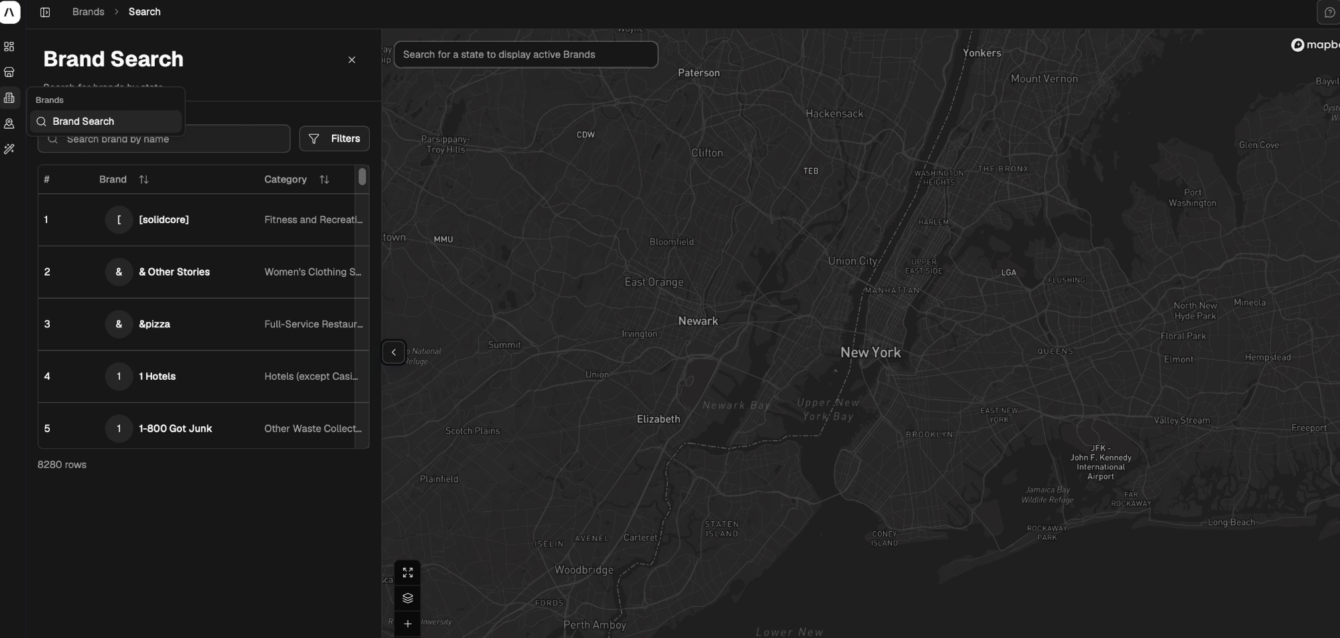
- Login to the Almanac platform
- Click brand search in the sidebar on the left
- Enter your brand
- Change the comparison by clicking “local retail area” Remove the local retail area default comparison default and click “create new comparison”.
- Choose what you want to compare. Almanac will offer you three options: Location(s), Brand(s) and Retail area(s).
- To compare your brand to your competitors, select “Brand(s)”
- Select the scope you’d like to compare
- Choose if you want to compare brands individually or aggregated.
- Customize your dashboard and analyze your competitors.
- Click the notification bell to receive updates every month.
Let’s get started:
1. Login to the Almanac platform
2. Click brand search in the sidebar on the left
3. Enter your brand
This will show you the dashboard view of the brand you’ve selected. To give you a fast look at how your brand is performing, we’ve set a default comparison of your “Local retail area”. This default setting benchmarks against the retail area around each of your selected locations. Updates automatically as your location set changes.
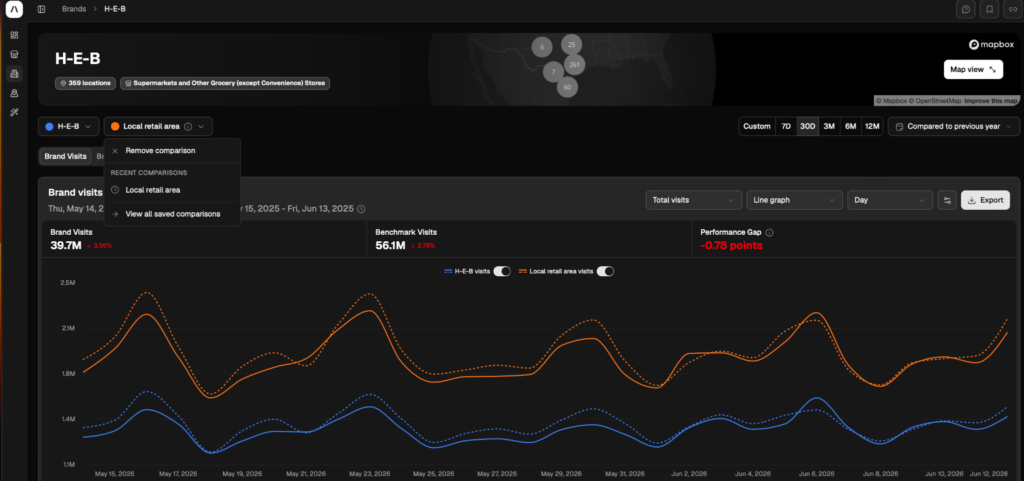
4. Change the comparison by clicking “local retail area” Remove the local retail area default comparison default and click “create new comparison”.

5. Choose what you want to compare. Almanac will offer you three options: Location(s), Brand(s) and Retail area(s).
Location is best to compare a particular store such as your flagship vs your competitors.
Our brand comparison is perfect to take a broader view at how your competitors are faring compared to your business. You can then use filters to narrow this down to a regional or local level for more granular data.
Comparing retail areas can help you understand how some retail corridors, cities and malls are performing versus other sites.
Select which type works best for you.
Read more: How to Validate a New Store Location
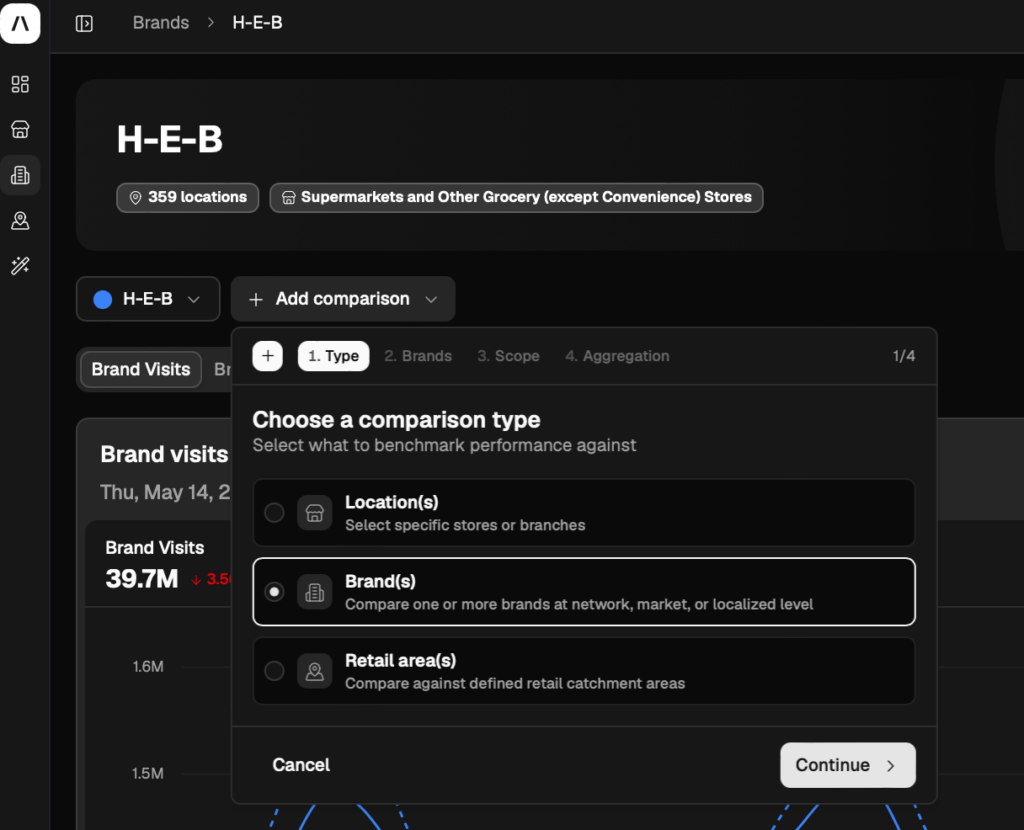
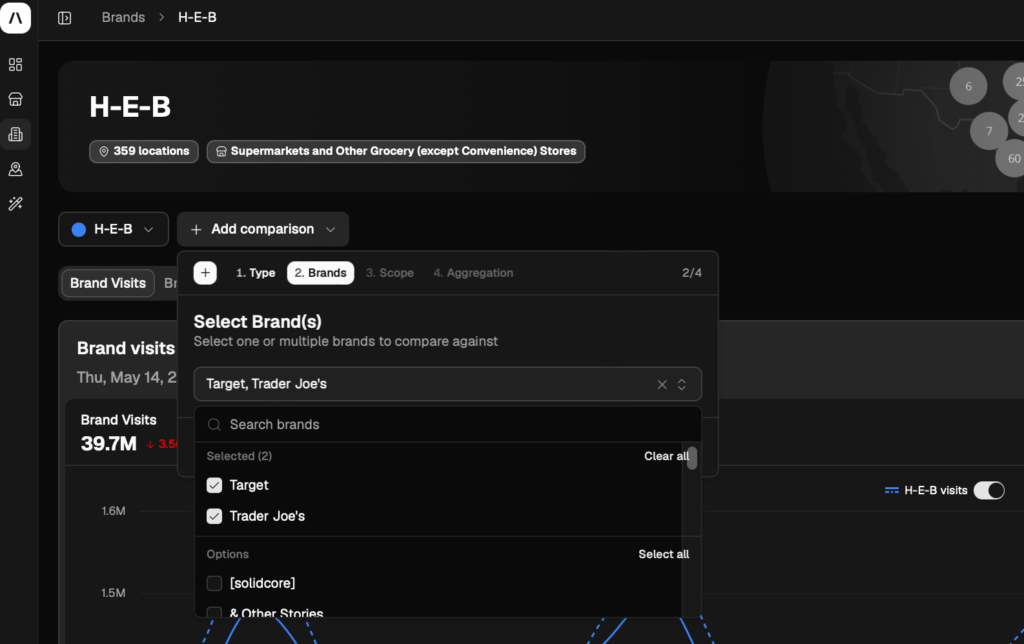
6. To compare your brand to your competitors, select “Brand(s)”. You can select as many as needed. When you’ve selected all the brands you want to compare, click continue.
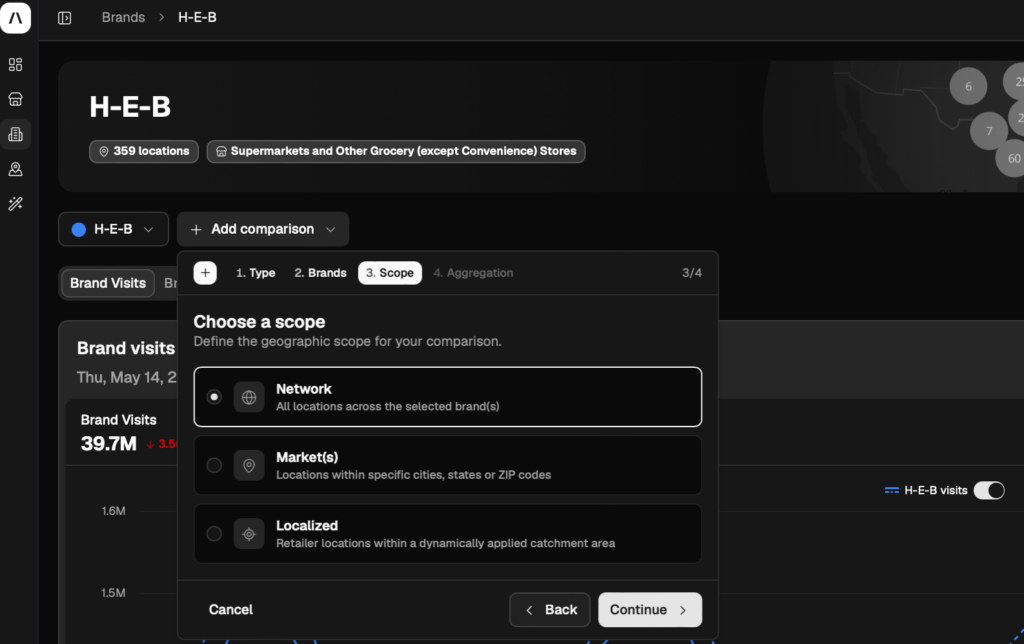
7. Select the scope you’d like to compare.
- Network will compare all brand locations to give you the largest view for comparison.
- Markets is best for comparing your brand compared to your competitors in a city, state or specific zip code.
- A localized comparison will focus on comparing your brand to your competitors within a specific geographic range.
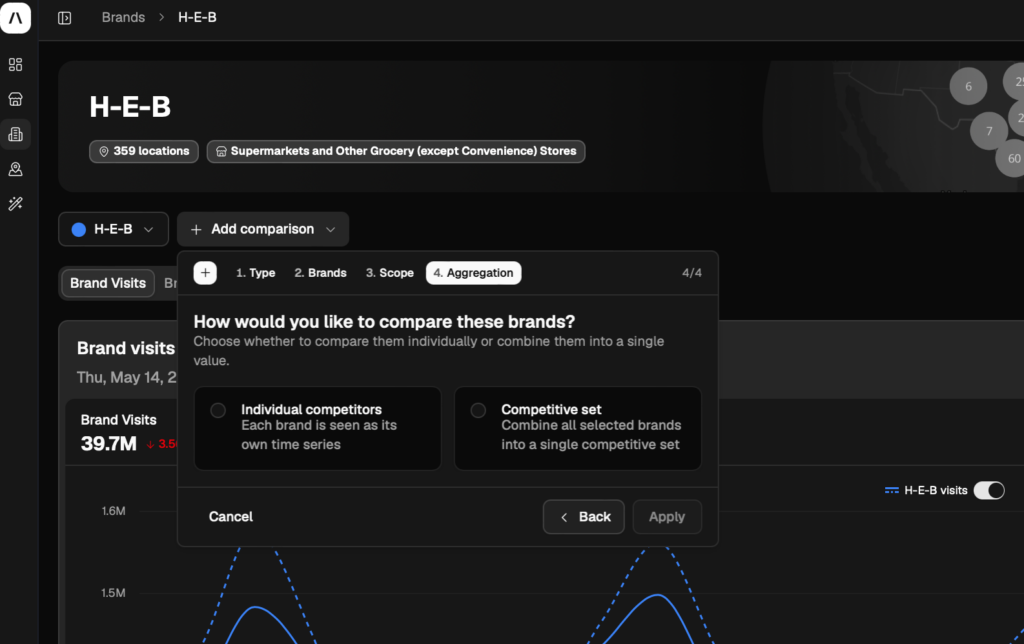
8. Select if you’d like to compare the brands on an individual level or as a set.
9. Once you’ve selected everything you need, Almanac will load the competitive traffic report.
From this dashboard you can:
- Adjust the time range to view historical foot traffic data
- Compare growth and foot traffic performance in a line graph, bar chart
- Download the report in a CSV file
- Copy a shareable link to share the report with the rest of your team
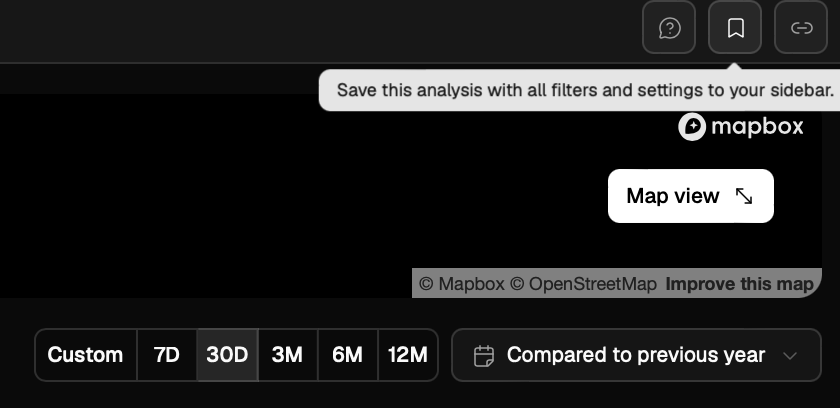
- Select Map View in the top right corner to view the retail locations on a map and inspect locations of interest in further detail
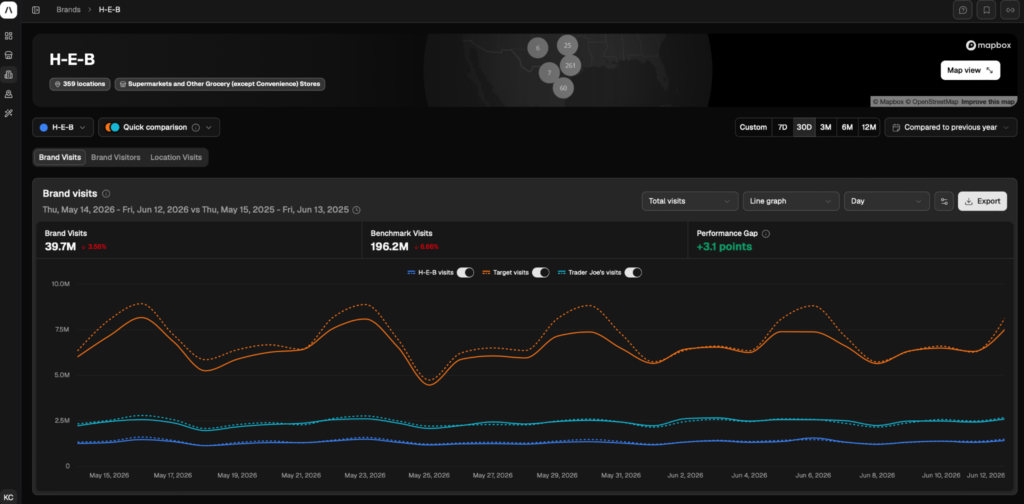
10. Set up the email updates by clicking on the notification bell. From there, select if you’d like to receive updates weekly or monthly.
These updates will come to your inbox via the email you use to sign in to Almanac. You can unsubscribe at any time.
Tip: Come back to your report quickly by saving it to your sidebar. Click the bookmark in the top right corner to save the report.
Make your Monthly Competitive Traffic Report with PassBy
Ready to get monthly updates on your competitors? Sign up for an Almanac account today to unlock powerful insights.
If you are already an Almanac user, connect your account to ChatGPT or Co-Pilot to get instant answers to your data questions.
Competitive Traffic Report FAQs
Do I need an Almanac account?
Yes, you will need an Almanac account to complete a monthly competitive traffic report. You can book a 15 minute walkthrough with our team here to see if Almanac suits your needs.
The competitor traffic report tool is available for users on all pricing plans.
Are the email updates only monthly?
You can set up monthly or weekly email updates for the competitive traffic report. If you need more regular updates, save the report to your sidebar so you can revisit it easily.
Can I export the competitor traffic report?
Yes, you can export the data itself as a CSV file by clicking export just above the graph. Or share the report by clicking the link icon in the top right corner.